
Download USB Network Gate – Remote USB Sharing, Secure Network Tool
Overview
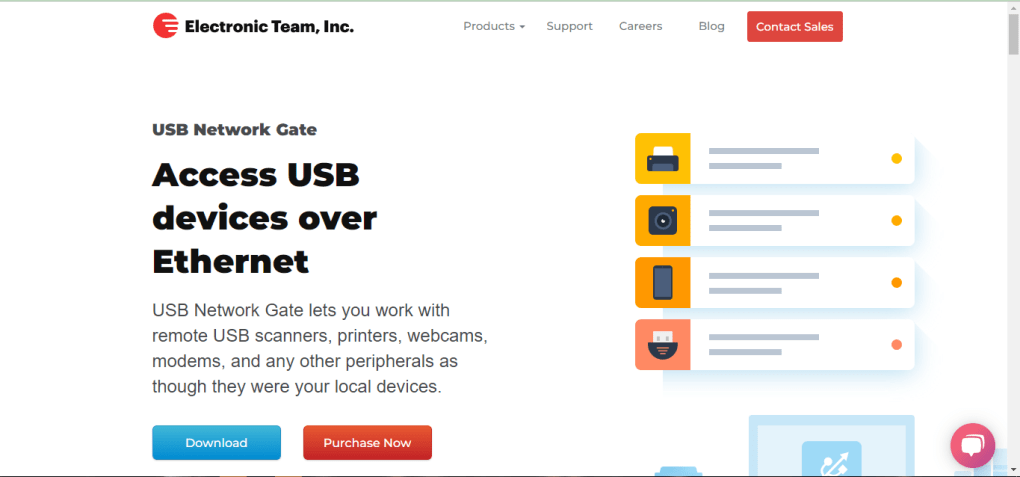
USB Network Gate is a versatile network solution that lets you share and access any USB‑based peripheral over an IP, LAN, VPN, or internet connection. Whether you need to use a scanner, printer, webcam, modem, or any other USB device from a remote workstation, this software creates a virtual bridge that behaves exactly as if the device were physically plugged into your computer. The free‑to‑try version offers a 14‑day full‑feature trial, giving users ample time to evaluate its performance before committing to a license.
USB Network Gate positions itself as a practical alternative to other USB‑over‑network utilities such as USB Redirector, FlexiHub, and similar tools. Its core value lies in eliminating the constant plugging and unplugging of flash drives or other peripherals, streamlining workflow for remote teams, IT support staff, and anyone who needs to access USB hardware from a distance. Security is baked in; all data streams are encrypted to protect against eavesdropping and malware attacks.
The interface is intentionally simple: two main tabs—Local and Remote—display connected devices and active sessions respectively, making it easy for users with only basic technical knowledge to get started. By leveraging existing network infrastructure, USB Network Gate turns any Ethernet or Wi‑Fi connection into a high‑speed conduit for USB data, delivering the same performance you’d expect from a direct cable link.
Key Features
- Cross‑Platform Support: Works on Windows, macOS, Linux, Android, and iOS, enabling you to share USB devices across virtually any device ecosystem.
- Secure Encrypted Channels: AES‑256 encryption safeguards data traffic, ensuring that sensitive information never travels in plain text.
- Zero‑Configuration Networking: No complex firewall rules or port forwarding are required; the software automatically negotiates the best path.
- Multiple Connection Types: Supports LAN, VPN, and direct internet connections, making it ideal for both local office environments and global remote collaborations.
- Device Compatibility: Handles scanners, printers, webcams, modems, storage drives, dongles, and virtually any USB‑class device.
- Session Management: Real‑time monitoring of active connections, bandwidth usage, and device status via the Remote tab.
- Automatic Updates: Built‑in updater keeps the software current with the latest security patches and feature enhancements.
- Free 14‑Day Trial: Full access to all premium features without hidden restrictions, allowing you to test performance before purchasing.
- Lightweight Footprint: Minimal CPU and memory usage, ensuring that the tool does not interfere with other critical applications.
- Scalable Licensing: Options for single‑user, multi‑user, and enterprise licenses, accommodating teams of any size.
Installation & Usage Instructions
Step‑by‑Step Installation
Downloading and installing USB Network Gate is straightforward. Start by visiting the official website and clicking the Download button for your operating system—Windows, macOS, Linux, Android, or iOS. The installer is signed and verified, guaranteeing a secure free download.
Once the file is saved, run the installer and follow the on‑screen prompts. The wizard will ask you to accept the license agreement, choose an installation folder, and optionally create a desktop shortcut. For Windows users, the setup may request administrator privileges to install required network drivers; this is normal and essential for low‑level USB redirection. macOS users will be guided through a System Extension approval process, which also requires admin rights.
On mobile platforms (Android/iOS), the app is distributed via Google Play or the Apple App Store, so installation follows the standard app store flow.
Configuring Your First Connection
After installation, launch USB Network Gate. The main window displays two tabs: Local and Remote. In the Local tab, the software automatically scans and lists all USB devices physically attached to the host computer.
Select the device you wish to share, then click the Share button. A dialog appears prompting you to set a port number (default is 3300) and optional password for added security. Confirm the settings, and the device becomes visible over the network.
On the client machine—whether it’s a second PC, a Mac laptop, or a mobile device—open USB Network Gate and switch to the Remote tab. Click Add Connection, enter the IP address or hostname of the host computer, the port number you configured, and the password if you set one. Once the connection is established, the remote device appears in the list, ready for use. For example, a remote printer will show up in the operating system’s printer manager as if it were locally attached, allowing you to print without ever moving the physical hardware.
Tips for Optimal Performance
- Use a wired Ethernet connection for bandwidth‑intensive devices such as high‑resolution webcams or large external drives.
- Enable the built‑in Auto‑Reconnect feature if you experience intermittent network drops; the software will attempt to restore the session automatically.
- Keep the software updated via the Check for Updates button to benefit from the latest performance tweaks and security patches.
- When sharing storage devices, consider enabling the Read‑Only mode if you only need to retrieve files, reducing the risk of accidental data loss.
Compatibility, Pros & Cons
Supported Operating Systems: Windows 10/11, Windows Server 2016‑2022, macOS 10.13‑13 (Ventura), major Linux distributions (Ubuntu, Debian, Fedora), Android 6.0 and above, iOS 12 and above.
Pros
- Broad cross‑platform support eliminates the need for multiple tools.
- Strong AES‑256 encryption keeps data secure during transmission.
- Zero‑configuration networking simplifies deployment for non‑technical users.
- Free 14‑day trial provides full feature access without restrictions.
- Lightweight resource usage ensures the host system remains responsive.
- Scalable licensing options suit both individuals and enterprises.
Cons
- The user interface is functional but lacks modern visual polish.
- Advanced features (e.g., multi‑session management) are locked behind the paid version.
- Initial setup on macOS requires additional System Extension approval steps.
- Performance over high‑latency internet connections can be limited for bandwidth‑heavy devices.
Overall Verdict: USB Network Gate delivers a reliable, secure, and easy‑to‑use solution for remote USB access. While the UI could benefit from a visual refresh, its robust feature set and cross‑platform reach make it a top contender for teams that need to share peripherals without the hassle of physical cables.
Frequently Asked Questions
Can I use USB Network Gate for free after the trial?
The free version allows you to share a limited number of devices and lacks some advanced features. To unlock full functionality, a paid license is required.
Is the data transmission really encrypted?
Yes. USB Network Gate uses AES‑256 encryption for all connections, ensuring that data is protected from eavesdropping and man‑in‑the‑middle attacks.
What network speeds can I expect?
On a Gigabit Ethernet LAN, most USB 2.0 devices will perform at near‑native speeds, while USB 3.0 devices may be limited by network bandwidth. Over Wi‑Fi or VPN, speeds depend on the underlying connection quality.
Does USB Network Gate support multiple simultaneous users?
Yes, the enterprise license allows multiple concurrent connections, letting several remote users share the same physical device at once.
Can I share a USB storage drive securely?
Absolutely. The software encrypts the data stream, and you can enable read‑only mode to prevent accidental modifications from remote clients.
Conclusion & Call to Action
USB Network Gate stands out as a robust, secure, and cross‑platform tool for anyone who needs to access USB peripherals from remote locations. Its ability to turn any network—whether a local LAN, a VPN tunnel, or the open internet—into a virtual USB hub saves time, reduces hardware wear, and simplifies collaboration across distances. While the interface could benefit from a visual upgrade, the core functionality, encryption, and ease of deployment more than compensate for that minor shortcoming.
For businesses looking to streamline remote support, developers needing to test hardware across multiple machines, or individuals who simply want to avoid constant plugging and unplugging, USB Network Gate offers a compelling solution. Take advantage of the 14‑day free trial to experience the full feature set, and if it meets your needs, consider upgrading to a paid license for unlimited device sharing and advanced management tools. Download USB Network Gate today and turn any network into a seamless USB extension.







